 WattDial
Find your inverter's IP address and logger serial number
To read an inverter on your home network you need its address, and for Solarman-type loggers also the logger's serial number. Here is where to find both, and what Fronius GEN24 owners need to switch on first.
Solarman-type logger: the serial number
The serial number is printed on the label of the data logger itself, the stick plugged into the inverter (often marked SN, usually 10 digits). It is the logger's number, not the inverter's. The cloud app also shows it in the device details. Local readers need it because the logger only answers requests that carry its own serial.
Finding the IP address
- Router: open your router's list of connected devices (in its web page or app) and look for the logger. It often shows up with a technical name; it is the one that appeared when the stick was set up.
- A network scan: an app that scans your Wi-Fi for the logger's port (8899) finds it without the router.
- Keep it fixed: routers sometimes give a device a new address. A DHCP reservation ("always give this device the same IP") in the router prevents that.
The address usually looks like 192.168.1.50 or 192.168.178.23: the same first parts as your phone's address on the same Wi-Fi.
Fronius: address and Solar API
- Fronius inverters with a Datamanager or built-in Wi-Fi offer the Fronius Solar API on the home network. Find the address in the router's device list or in the inverter's network settings.
- GEN24: the Solar API is switched off from the factory. Open the inverter's web page and switch it on under Communication → Solar API.
- To test it, open
http://<IP address>/solar_api/GetAPIVersion.cgiin a browser on the same Wi-Fi. A short text with the API version means it is on.
If nothing answers
- The phone must be on the same Wi-Fi as the inverter; mobile data cannot reach it.
- Guest networks usually block devices from seeing each other.
- Many loggers answer only one program at a time: close other tools that read it.
- At night some inverters sleep: the logger answers, but the inverter behind it does not.
- Some newer logger firmware reportedly no longer answers on the home network at all.
Adding the inverter in WattDial
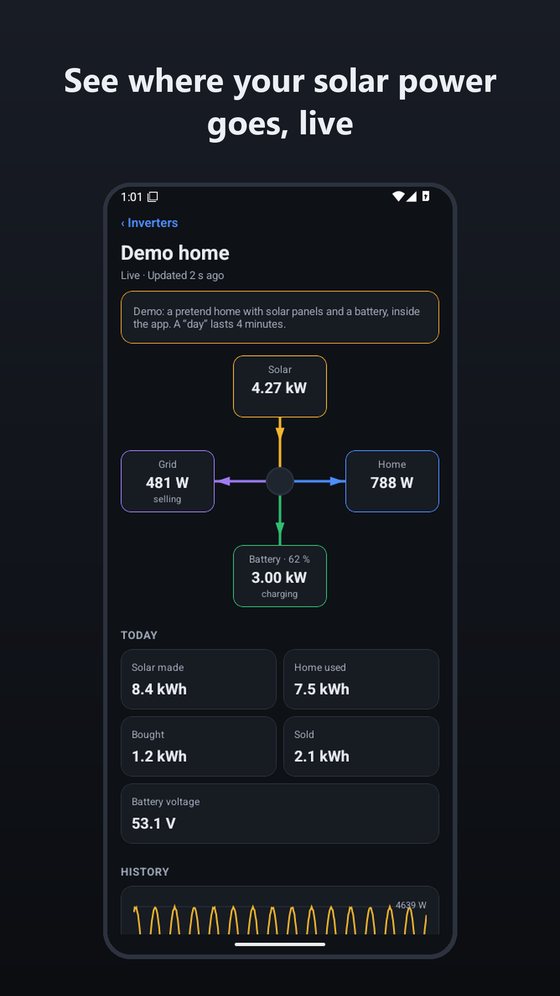
In WattDial, tap "Add inverter", pick the logger type, and enter the IP address or tap "Find on my Wi-Fi": it checks your phone's own network for Solarman-type loggers (port 8899) and the Fronius Solar API. For a Solarman-type logger, type the serial number from its label.
- The search only connects to each address and closes again; it sends nothing to the logger.
- If the logger answers with another serial, the app tells you to check it.
- Only home-network addresses are accepted, and the app is read-only.
For Android phones · Runwith (Auto Ace LLC)
Questions and answers
Is the logger serial number the same as the inverter serial number?
No. Local readers need the data logger's own serial number, printed on the logger's label.
What port does a Solarman data logger use?
Solarman-type loggers answer local requests on TCP port 8899.
How do I turn on the Solar API on a Fronius GEN24?
In the inverter's web page, under Communication → Solar API. It is off by default on GEN24.